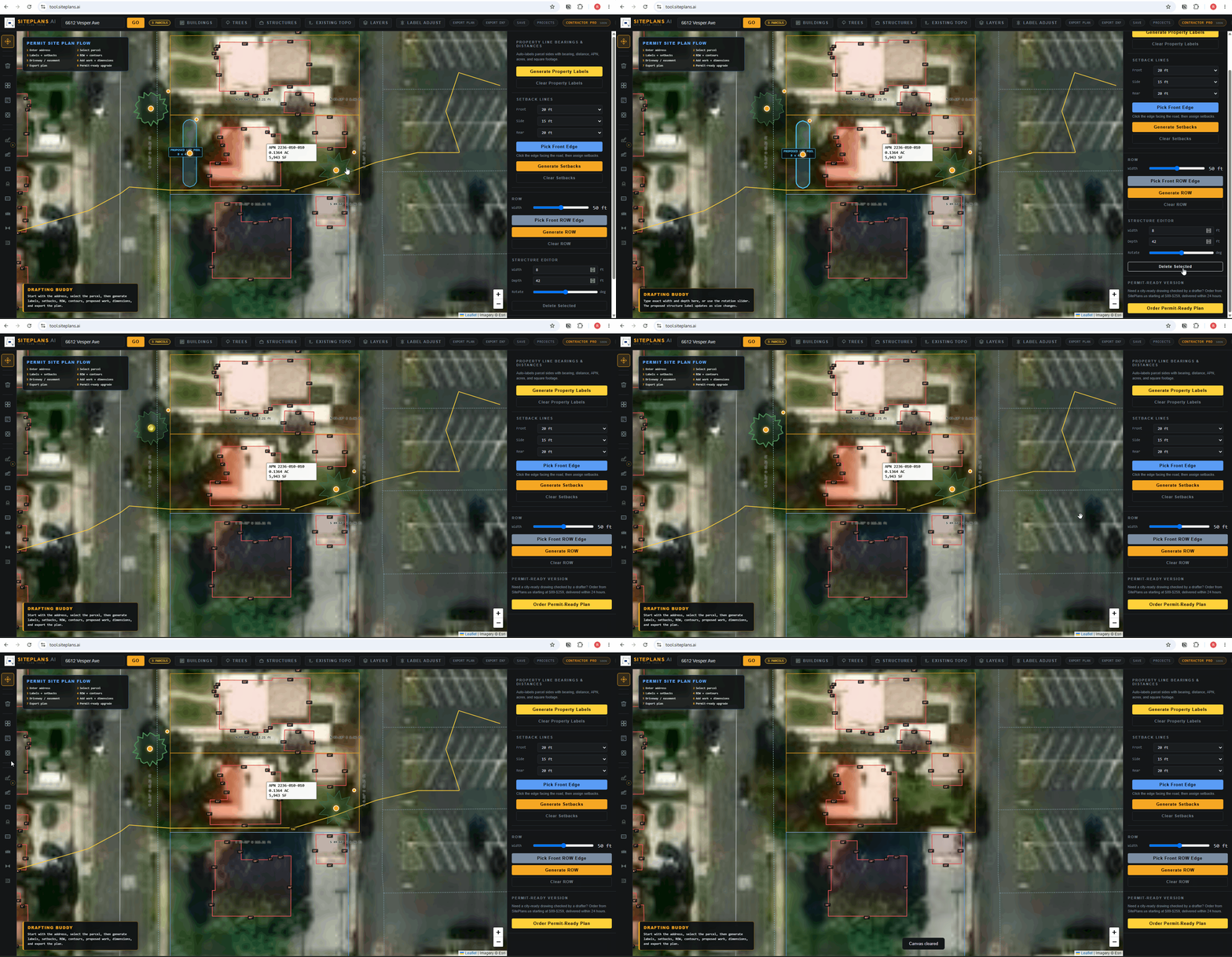
# How to Clear a Structure or Tree in SitePlans AI
Placement isn't always right the first time — a shed dropped a few feet off, a tree that needs repositioning entirely. Clearing it doesn't mean starting over.
Quick Answer
Select the structure or tree, then click Clear Structure or Clear Tree in the right-side panel. Only that element disappears — everything else on your plan stays untouched.
Step-by-Step
1. Select the element. Click the structure or tree you want to remove.
2. Find the right panel. Look for Clear Structure or Clear Tree, depending on what you've selected.
3. Click it. The element is removed immediately.
4. Replace it if needed. Add a new structure or tree the same way you did the first time — placed outside the lot line first, then dragged into position.
When to Use This
Any time a placement is wrong — bad position, wrong size before you'd rather just restart than resize, or a project scope change that removes something from the plan entirely.
Common Mistakes
Trying to drag an element off the plan instead of clearing it. It won't fully remove that way — use the Clear button instead.
Clearing the wrong element on a busy lot. Zoom in first if multiple structures are close together, so you're confident you've selected the right one before clicking Clear.
If Something Isn't Working
Clear button isn't doing anything — confirm the element is actually selected first; the panel only shows Clear options for whatever's currently active.
Cleared the wrong thing — just re-add it the same way you built it originally; there's no separate undo step needed.
When to Get Help
Reach out to SitePlans.ai support if a Clear action isn't behaving as expected, or use SitePlans.us if you'd rather have a professional review your full plan.
Related Tools
FAQ
Does clearing a structure affect anything else on my plan?
No — only the selected element is removed. Property lines, setbacks, and every other placed feature stay exactly as they were.
Can I undo a clear action?
There's no separate undo — just add the element back the same way you originally placed it.
Does this work the same for structures and trees?
Yes, same behavior — Clear Structure and Clear Tree both remove only the selected element.
What if I want to resize instead of clear?
Use the corner resize dot instead — clearing is for full removal, not adjustment.
Start Here
Create My Site Plan — Need help? Get support from SitePlans.us →