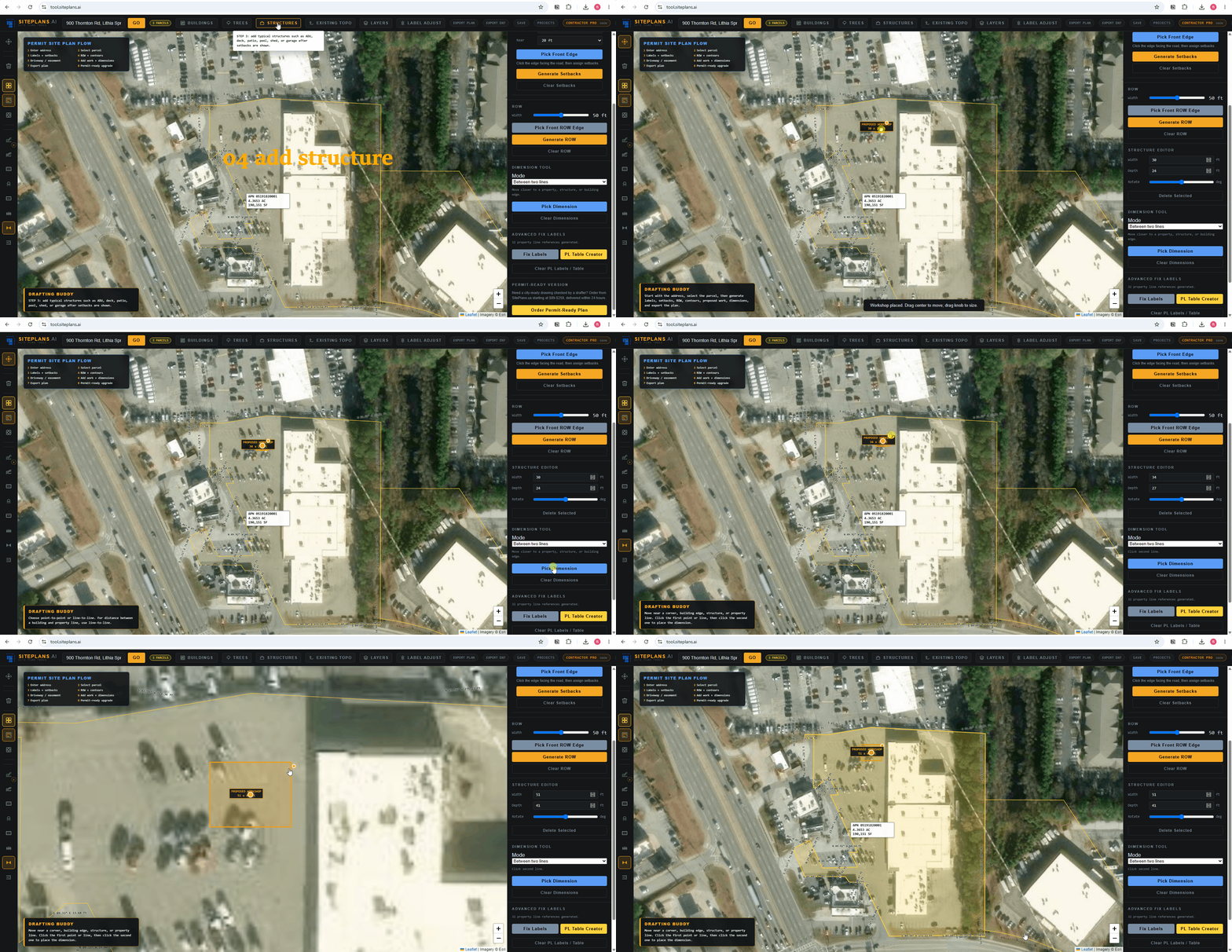
# How to Add a Structure in SitePlans.ai
Every structure type on your site plan — shed, deck, patio, pool, garage, ADU — goes through the same tool. Learn this once and you've learned how to place anything.
Quick Answer
Click Add Structure in the top toolbar, select your structure type from the preset dropdown, place it just outside your property line first, then drag it into position. Resize with the corner handle or manual dimension fields, rotate for correct orientation.
Step-by-Step
1. Click Add Structure. Find it in the top toolbar.
2. Select your preset. The dropdown covers the common categories: shed, deck, patio, pool (with shape options like rectangular, Roman, lap, plunge), garage, and ADU.
3. Place it outside the lot first. Drop the structure just outside your property boundary, then drag it into position. This makes fine placement noticeably easier than dropping it directly onto the lot and fighting with it from there.
4. Resize to actual dimensions. Drag the dot on the structure's corner, or go to the right-side panel and enter exact length and width manually — the more precise option when you know your real project dimensions.
5. Rotate for orientation. Use the right panel's rotation control to align the structure correctly — most structures need to sit at a specific angle relative to the house or property lines, not just wherever it happened to land.
6. Add a description. Use the right panel's description field for anything a reviewer needs beyond the drawing itself — material, use, unit type, whatever's relevant to your specific project.
Why the "Outside First" Step Matters
It's a small habit, but it's the single most common thing new users skip — and skipping it is why placement feels harder than it should. Structures dropped directly onto a lot are awkward to fine-tune; structures dragged in from outside the boundary land more predictably where you actually want them.
When to Use This
Every project needs this tool at some point — it's the foundational placement step underneath every specific structure type. Once you're comfortable with the general workflow here, the project-specific guides (deck, shed, patio, ADU, pool, garage) add only the details unique to that structure type.
Common Mistakes
Placing directly on the lot instead of outside first.
Guessing at dimensions instead of entering them manually — visual resizing is fine for rough layout, but manual entry is what actually gets your drawing accurate.
Forgetting to rotate — an unrotated structure sitting at the wrong angle is one of the more common reasons a plan looks unprofessional even when every other element is correct.
Not checking placement against generated setbacks — a structure that looks fine visually can still cross a setback line once setbacks are actually generated. Place structures after setbacks are already on your plan, not before, so you can see the collision immediately if there is one.
If Something Isn't Working
Structure won't resize — confirm it's actually selected first; the resize handle only appears on the active element.
Wrong preset in the dropdown — some structure types have sub-options (pool shapes, for instance); check the full dropdown list before assuming your type isn't available.
Structure disappeared — it may have been placed off-screen if dropped outside the visible map area; zoom out to check, or use Clear Structure and re-place it.
When to Get Help
Reach out to SitePlans.ai support or use SitePlans.us if you're placing a structure type not covered by the standard presets, or want a professional to verify placement before you submit.
Related Tools
- How to place a deck
- How to place a shed
- How to add a patio
- How to add an ADU
- How to generate setbacks
- How to clear a structure or tree
- SitePlans.ai support center
FAQ
Does the same tool work for every structure type?
Yes — one Add Structure tool with a preset dropdown covers sheds, decks, patios, pools, garages, and ADUs.
Why should I place a structure outside the lot first?
It's easier to drag into precise position than to fine-tune a structure dropped directly onto the property.
Can I enter exact dimensions instead of resizing by eye?
Yes — the right-side panel has manual length and width fields for precise sizing.
How do I know if my structure is placed correctly relative to setbacks?
Generate your setbacks before placing structures, then check visually that nothing crosses the setback lines once your structure is in position.
Can I place more than one structure on the same plan?
Yes — repeat the process for each structure your project includes.
What if my structure type isn't in the preset dropdown?
Check for sub-options within a category first (pool shapes, for example). If it's genuinely not covered, note the details in your description field on the closest matching preset, or reach out to support.
Does rotation affect the structure's labeled dimensions?
No — rotating only changes orientation on the plan; the dimensions you've entered stay accurate.
Can I remove a structure after placing it?
Yes — see how to clear a structure or tree.
Start Here
Create My Site Plan — Need help? Get support from our help desk →